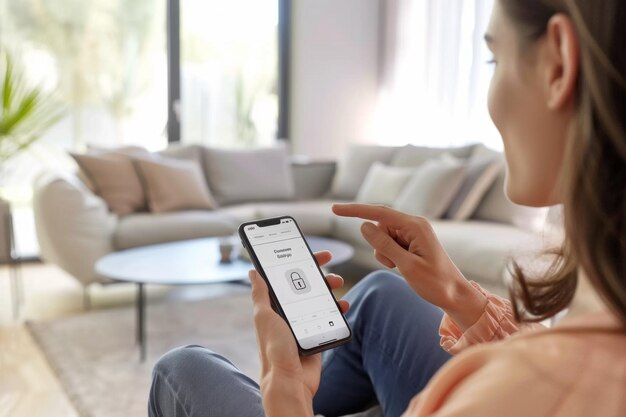
Samsung SmartThings Made Simple: How To Build a Fully Automated Smart Home
Imagine your lights dim automatically at sunset, your doors lock themselves at bedtime, and your thermostat adjusts the temperature before you even wake up. That kind of “it-just-works” home is exactly what many people hope to create with Samsung SmartThings.
This guide walks you step by step through setting up SmartThings for a fully automated smart home—from choosing a hub to building advanced routines—so your devices feel like one coordinated system instead of a pile of disconnected gadgets.
What Is Samsung SmartThings and Why Use It?
Samsung SmartThings is a smart home platform that lets you connect and control compatible devices from one app. Instead of juggling multiple apps for lights, locks, cameras, and appliances, you can bring many of them together and set up automations that make them work in sync.
What SmartThings Can Do in Your Home
With a thoughtful setup, SmartThings can help you:
Automate everyday tasks
Turn lights on when you arrive, start the coffee maker on a schedule, or adjust blinds based on time of day.Enhance comfort
Coordinate lights, thermostat, and fans for wake-up routines, movie nights, or bedtime.Increase awareness and security
Get notifications if doors open unexpectedly, motion is detected when you’re away, or water is sensed where it shouldn’t be.Simplify control
Use a single app to manage compatible devices from different brands, and trigger them with your phone, voice, or automation routines.
You can start small with a few smart bulbs and a motion sensor, then gradually build toward a fully automated smart home.
Planning Your SmartThings Smart Home
A bit of planning up front saves a lot of frustration later. Before buying or installing anything, think about how you actually live in your home.
Step 1: Define Your Main Goals
Ask yourself what you want most from automation:
- Convenience – Hands-free lights, voice control, automated routines.
- Comfort and ambiance – Smart lighting scenes, temperature control, music.
- Safety and awareness – Door and window sensors, smoke and water leak alerts.
- Energy-conscious living – Turning off unused lights, adjusting heating and cooling.
Your priorities will guide which devices to start with and which automations to build first.
Step 2: Map Your Home by “Zones”
Think in zones rather than individual devices:
- Entryway
- Living room
- Kitchen
- Bedrooms
- Bathrooms
- Outdoor/yard areas
For each zone, list:
- What you do there (work, relax, sleep, cook, etc.).
- What would make that easier or more comfortable (lighting, temperature, alerts).
This helps you design coherent scenes and routines instead of random, disconnected automations.
Step 3: Check Compatibility
SmartThings works with many types of devices, including those using Wi‑Fi, Zigbee, Z‑Wave, and Matter, depending on your SmartThings hub and device models. Before purchasing:
- Look for products marked as SmartThings-compatible or that explicitly mention working with SmartThings.
- Consider whether you want mostly mains-powered devices (like plugs and switches) or battery devices (like sensors and buttons). Mains-powered Zigbee/Z-Wave devices can help extend the wireless mesh network.
Compatibility checks upfront reduce headaches when you start connecting everything in the app.
Choosing and Setting Up Your SmartThings Hub
SmartThings can run partly in the cloud via connected devices, but many users choose a SmartThings hub (built into some Samsung devices or as a standalone hub) for local control and broader device compatibility.
Types of SmartThings Hubs
Depending on when and how you’re setting up SmartThings, you may encounter:
- Standalone SmartThings hubs
Dedicated hardware that sits near your router and connects to many types of devices. - SmartThings built into Samsung products
Some TVs, appliances, and smart speakers include SmartThings hub functions.
Selection depends on what’s available and what works best with your existing equipment. Many people prefer a dedicated hub for wider compatibility and more reliable automation.
Physical Setup of the Hub
Choose a location
- Central in the home, if possible.
- Away from thick concrete or metal obstructions.
- Not directly on top of the Wi‑Fi router (a bit of space can help reduce interference).
Connect the hub
- Plug it into power.
- Connect to your network (via Ethernet or Wi‑Fi, depending on model).
Wait for it to start up
Indicator lights usually signal when it’s ready. The exact patterns and steps vary by model, so follow the included instructions.
Initial App Setup
Download the SmartThings app
Available on major mobile platforms.Sign in or create a Samsung account
This account will hold your devices, locations, and routines.Add your hub
- In the app, go to add a device.
- Choose the hub or “SmartThings Hub” option.
- Follow on-screen prompts to pair the hub to your account and network.
Once the hub is connected, your SmartThings “Location” is ready for devices and automations.
Adding Devices to SmartThings
With the hub in place, you can now connect devices throughout your home.
Common Device Types for a Fully Automated Home
- Smart lights – Bulbs, switches, dimmers, LED strips.
- Sensors – Motion, contact (door/window), temperature, humidity, water leak.
- Security-related devices – Smart locks, sirens (where available), cameras.
- Climate control – Thermostats, smart vents, AC control modules, fans.
- Power control – Smart plugs, smart outlets, power strips.
- Appliances and AV – Compatible TVs, robot vacuums, appliances, speakers.
You don’t need everything at once. Many users start with lights and sensors, then expand over time.
General Steps to Add a Device
While each product has its own steps, the general SmartThings process is similar:
- Open the SmartThings app.
- Tap “+” and select Add device.
- Choose the brand or device type, or let SmartThings scan for nearby compatible products.
- Follow prompts to put the device in pairing mode (often by holding a button or flipping a switch on/off several times).
- Assign the device a name (e.g., “Hallway Motion Sensor”) and room (e.g., “Hallway”).
SmartThings then adds it to your location and it appears on your home screen for control and automation.
Naming and Organizing Devices
Clear naming and organization make your smart home far easier to manage, especially as it grows.
Tips for smooth organization:
- Use room-based names:
- “Kitchen Ceiling Light” instead of just “Light 1”.
- Group related devices:
- All bedroom lights in “Bedroom” room.
- All outdoor lights in “Garden/Patio”.
- Keep names short but descriptive:
- “Front Door Lock”, “Garage Motion”, “Living Lamp”.
📝 Quick tip:
Future automations and voice control become much easier when your device names match how you naturally talk about your home.
Understanding Scenes, Routines, and Automations
SmartThings uses a combination of Scenes and Routines to turn individual devices into a coordinated smart home.
Scenes: One-Tap Moods and Setups
A Scene lets you set multiple devices to specific states with a single action.
Examples:
“Movie Night” scene
- Living room lights dim to 20%.
- TV turns on.
- Lamp strips switch to warm white.
“Away” scene
- All lights off (except a chosen one for security).
- Smart lock engages.
- Thermostat set to an energy-conscious temperature.
You can activate scenes manually in the app or with compatible voice assistants.
Routines: If-This-Then-That for Your Home
Routines are where full automation comes to life. They are rules like:
- If it’s 10:30 PM then lock the doors and turn lights off.
- If a motion sensor detects movement after midnight then turn on the hallway night light.
- If you arrive home (based on your phone’s location) then turn on porch lights and unlock the front door (if you choose).
Routines can use:
- Time (specific time, sunrise, sunset)
- Device states (door opens, motion detected, light turns on)
- Location status (home/away)
- Modes (if you use them, such as Home / Away / Night)
SmartThings continues to expand what conditions and actions are available, so options can vary over time.
Building Your First SmartThings Automations
Once your hub and a few devices are ready, you can start creating practical automations.
1. Welcome Home Lighting
Goal: Lights turn on automatically when you arrive home after dark.
Steps:
- In the SmartThings app, go to Routines.
- Create a new routine: “Arrive Home Lights”.
- Set the trigger:
- If Members arrive (location-based)
- Limit to after sunset to avoid daytime triggers.
- Set the actions:
- Turn on porch light.
- Turn on hallway or entry lights.
- Save and test by arriving home or simulating arrival.
This gives you a taste of SmartThings’ location-based automation without needing to touch your phone.
2. Motion-Activated Hallway Lights at Night
Goal: A soft light comes on when someone walks down the hallway at night.
Needed:
- Motion sensor in the hallway.
- Smart bulb or switch controlling hallway light.
Steps:
- Add both devices to SmartThings and place them in the Hallway room.
- Create a routine: “Night Hallway Light”.
- Trigger:
- When Hallway Motion Sensor detects motion.
- Condition: Only between specific hours (e.g., 11:00 PM–6:00 AM).
- Action:
- Turn on Hallway Light to a low brightness (if dimmable).
- Add a second routine:
- Trigger: When no motion detected for X minutes.
- Action: Turn off Hallway Light.
This simple setup is a common way people start building a fully automated lighting system.
3. Good Morning Routine
Goal: A gentle start to your day with lights, temperature, and maybe sound.
Possible actions:
- Turn on bedroom lights gradually.
- Adjust thermostat by a few degrees.
- Turn on a smart plug for a coffee maker or kettle (only when safe and supervised).
Steps:
- Decide on your wake-up time or window.
- Create a routine: “Good Morning”.
- Trigger:
- Time-based (e.g., 7:00 AM on weekdays).
- Actions:
- Turn on or brighten bedroom lights.
- Adjust thermostat.
- Optionally start a plug-based appliance you use regularly.
🕒 Tip:
If your schedule changes often, consider creating multiple routines (e.g., “Weekday Morning”, “Weekend Morning”) and keeping one toggled off when not needed.
Deep-Dive: Lighting, Climate, and Security Automations
To move toward a fully automated smart home, it helps to focus on a few high-impact categories.
Smart Lighting: Comfort and Safety
Smart lighting is often the backbone of a SmartThings home.
Common lighting automations:
- Sunrise/Sunset Adjustments
- Porch and exterior lights turn on at sunset and off at sunrise.
- Room-based scenes
- “Reading”, “Work”, and “Relax” scenes in the living room with different brightness and color temperatures.
- Presence-based controls
- Lights in certain rooms turn off when no motion is detected for a set period.
Consider:
- Dimmable bulbs or switches in main living areas for flexible scenes.
- Warm color temperatures in bedrooms for a calmer evening feel.
- Cool white lighting in kitchens and workspaces for focus.
Climate Control: Comfort Without Constant Adjustments
If you connect a compatible thermostat or AC controller, SmartThings can help maintain comfortable conditions.
Examples:
- Sleep-friendly temperatures
- Slightly adjust heating or cooling at night.
- Energy-conscious away mode
- When everyone leaves, adjust temperature by a degree or two to reduce run time.
- Room-based comfort
- Use temperature sensors in multiple rooms to tailor comfort in living spaces.
Many people combine climate automations with routines:
- “Goodnight” lowers lights and adjusts temperature.
- “Home” mode sets the preferred living temperature.
Security and Awareness: Peace of Mind
While SmartThings is not a dedicated security system, it can enhance awareness of what’s happening at home.
Popular setups:
- Door and window alerts
- Send a notification when a door or window opens unexpectedly.
- Nighttime monitoring
- If entry sensors trigger when your mode is set to “Night” or “Away”, turn on lights and send alerts.
- Water leak detection
- Place water leak sensors near washing machines, sinks, or water heaters; get alerts when moisture is detected.
For safety-sensitive uses (locks, security, etc.), many people choose to test routines carefully and keep manual backups (like physical keys, traditional alarms, or separate detectors) as appropriate.
Using SmartThings Modes and Presence
Modes and presence are powerful tools for tailoring automations to whether you’re home, away, or sleeping.
Modes: Home, Away, Night (and More)
Modes are “states” of your home location. Common ones:
- Home – At least one household member is present.
- Away – Everyone is out.
- Night – People are home but asleep or preparing for bed.
You can create routines that only run in certain modes. For example:
- Motion-triggered lights work in Night mode but not in Home mode, if you don’t want them during the day.
- Door opening alerts might only send notifications when in Away mode.
Presence: Who Is Home?
Presence is usually tied to mobile devices:
- Each household member installs the SmartThings app.
- Their phones act as presence sensors (arrived/left).
Automations using presence:
- When everyone leaves, set mode to Away, turn off non-essential lights, and adjust climate.
- When anyone arrives, switch mode to Home, turn on entry lights.
Presence detection depends on each phone’s settings and location services, so many users:
- Enable location permissions for the SmartThings app.
- Test arrival/departure routines gradually.
Advanced Automations and Customization
Once you’re comfortable with basic routines, you can explore more granular control.
Multi-Condition Routines
SmartThings routines can often include multiple conditions, such as:
- Time range (after sunset, before sunrise).
- Specific mode (only in Away).
- Specific device state (window closed, thermostat idle).
Example:
These layered conditions help avoid unwanted triggers and make your home feel more “intelligent.”
Sensor-Driven Automations
Sensors can coordinate across devices:
- Motion + Light + Time
Use a motion sensor and a light sensor (if available) to only turn on lights when it’s actually dark and someone is present. - Temperature + Fans
Turn on a smart fan plug when a room exceeds a certain temperature, and turn it off when it drops below another threshold. - Contact Sensors + Notifications
If a window is open and rain is detected from another device (where available), send a reminder to close it.
Scenes + Voice + Routines
Scenes can be:
- Triggered by routines (e.g., “Good Night” routine activates the “Night Lights” scene).
- Activated with voice commands through connected voice assistants.
- Combined with physical buttons or remotes (if compatible) for tactile control.
This mixing of app, automation, and voice gives everyone in the home different ways to interact with the system.
Practical Tips for a Reliable SmartThings Home
A smart home feels best when it’s predictable and stable. These practical habits can help.
Network and Hub Placement
- Ensure solid Wi‑Fi coverage in the areas with Wi‑Fi-based devices.
- Place the hub in a central, elevated position, not tucked away behind heavy electronics.
- Avoid crowding too many wireless devices in one small area, which can lead to interference.
Start Simple, Then Layer Complexity
- Begin with one or two automations per room.
- Observe how they behave over a few days.
- Only then add more complex routines.
This approach makes troubleshooting easier and helps your household adjust to new behaviors gradually.
Label and Document
It may sound excessive, but with many devices:
- Keep a simple list of device names and locations.
- Use consistent naming patterns: “Room – Device – Function” (e.g., “Living – Lamp – Corner”).
- Take note of which routines affect which devices.
When something doesn’t behave as expected, this kind of “map” is very useful.
Quick-Reference: SmartThings Setup Checklist
Here’s a compact summary you can refer to while setting up.
✅ = foundational step, 🌟 = optional but helpful
| Step | Action | Notes |
|---|---|---|
| ✅ 1 | Define goals (comfort, security, convenience) | Decide what matters most to you first. |
| ✅ 2 | Plan zones (rooms and areas) | List key actions and devices per zone. |
| ✅ 3 | Choose and set up SmartThings hub | Place centrally, connect to network, link in app. |
| ✅ 4 | Install SmartThings app & sign in | Create Samsung account if needed. |
| ✅ 5 | Add first devices (lights, sensors, locks) | Start with a small, manageable set. |
| ✅ 6 | Name and organize devices by room | Use clear, consistent names. |
| ✅ 7 | Create simple scenes | “Good Night”, “Movie Time”, “Away”. |
| ✅ 8 | Build basic routines | Time-based and motion-based automations. |
| 🌟 9 | Set up presence and modes | Home/Away/Night-based logic. |
| 🌟 10 | Expand with sensors and advanced conditions | Multi-condition routines for more nuanced behavior. |
| 🌟 11 | Test, adjust, and refine | Tweak brightness, timings, and triggers over time. |
Common SmartThings Automation Ideas for Everyday Life
To spark your imagination, here are some frequently used SmartThings ideas you can adapt.
Morning and Evening
- Wake-up lighting that brightens gently over 10–15 minutes.
- Kitchen prep where under-cabinet lights and coffee-machine plug turn on when you enter in the morning.
- Evening wind-down with lights automatically dimming and media devices turning off at a target time.
Coming and Going
- Auto-lock doors a few minutes after they’re unlocked (if supported and desired).
- Greeting lights that turn on when you arrive after dark.
- Away mode that turns off non-essential lights and electronics when everyone leaves.
Safety and Maintenance
- Water leak alerts in laundry room, under sinks, by water heater.
- Fridge or freezer door open alerts if a compatible sensor is attached.
- Garage door reminders if a connected sensor reports the door is open after a specific time.
Comfort and Ambiance
- Movie scene that dims lights and mutes notifications on compatible devices.
- Reading nook button that sets one or two lamps to a specific brightness and color warmth.
- Party mode with colorful lighting presets and smart speaker coordination (where integrated).
Troubleshooting Basics When Things Don’t Work as Expected
Even well-designed smart homes occasionally glitch. Here are some simple steps you can take when something feels off.
When a Device Is Unresponsive
- Check power first (is the switch on, is the bulb screwed in, is the plug powered?).
- Confirm Wi‑Fi or mesh signal strength near the device.
- Try refreshing the device in the app or briefly unplugging and reconnecting it.
- If needed, remove and re-add the device in SmartThings, following the pairing instructions again.
When an Automation Doesn’t Trigger
- Make sure the routine is enabled in the SmartThings app.
- Verify the conditions (time, mode, presence, device state) can actually be met.
- Temporarily simplify the routine to a single condition and action to see where it fails.
- Check that location services are enabled if presence-based.
Over time, you’ll get a feel for how routines behave, and small adjustments usually resolve most issues.
Bringing It All Together
A fully automated smart home with Samsung SmartThings is less about filling your space with gadgets and more about weaving technology into your daily routines so it quietly supports you in the background.
By:
- Defining clear goals,
- Organizing devices thoughtfully,
- Starting with simple scenes and routines,
- Gradually adding more conditions and sensors,
you can shape a home that lights the way as you walk, adjusts as you sleep, and reacts intelligently when you come and go.
SmartThings gives you the tools; how far you take the automation is up to you. Begin with one or two meaningful automations that make your day easier, then build from there. Over time, you’ll develop a system that feels less like a collection of devices and more like a single, responsive home.