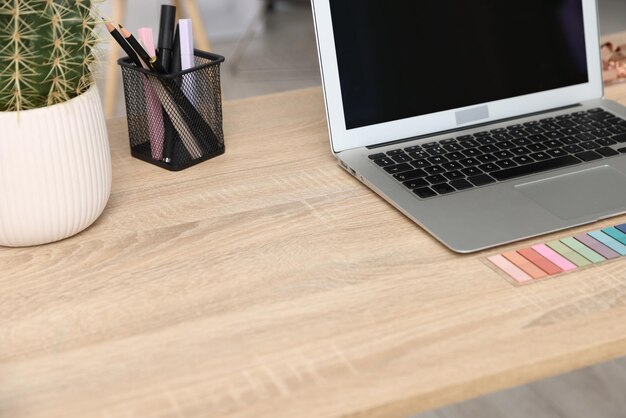
Clear Your Desk, Clear Your Mind: How to Organize Your Workspace for Maximum Productivity
If your desk is buried under papers, tangled cords, and half-finished projects, it can feel almost impossible to focus. Many people find that a cluttered workspace leads to a cluttered mind: decisions take longer, distractions pile up, and even simple tasks feel heavier than they should.
The good news is that a well-organized desk and workspace can become a powerful tool. With a few thoughtful changes, your desk can support your concentration, your comfort, and your productivity—without turning your home into a showroom.
This guide walks through practical, realistic ways to organize your desk and improve workspace efficiency, especially in a home or home-office setting.
Why Your Desk Setup Matters More Than You Think
Your desk is more than a flat surface. It’s the command center for your workday, whether you’re:
- Working from home full-time
- Managing household paperwork
- Studying or doing creative projects
- Running a side business or hobby
A desk that supports productivity typically:
- Reduces visual clutter, so your brain has fewer distractions.
- Keeps essentials within easy reach, so you don’t waste time hunting for things.
- Supports good posture and comfort, so you can work longer with less strain.
- Matches your workflow, so your setup works with you instead of against you.
Organizing your desk isn’t about perfection. It’s about designing a space that helps you do your best work with the least friction.
Step 1: Start with a Clean Slate
Before you buy organizers or rearrange furniture, it helps to reset your space.
Clear Everything Off
- Remove everything from your desk surface.
- Wipe down the desk, monitor, and peripherals.
- Place items into broad categories on the floor or another surface:
- Papers and notebooks
- Tech and cables
- Office supplies (pens, clips, sticky notes)
- Personal items (photos, plants, decor)
This reset makes it much easier to be intentional about what goes back and where.
Decide What Actually Lives on Your Desk
Ask of each item: “Do I use this every day, or at least several times a week?”
- If yes → It might deserve a spot on or in your desk.
- If no → It may belong in a drawer, cabinet, or another room.
This single filter often removes a surprising amount of clutter.
Step 2: Define Your Desk “Zones” for Efficiency
Thinking in zones helps you design a desk that matches your workflow.
Core Zones to Consider
1. Primary Work Zone
This is the area directly in front of you, roughly an arm’s length away. It should hold:
- Monitor or laptop
- Keyboard and mouse
- Notebook or planning pad
- One pen or writing tool
- Any daily-use item (for example, a calculator or reference book, if you use it constantly)
2. Secondary Zone
This is the area within easy reach but not directly in front:
- Side of the desk
- Shallow shelf above the monitor
- Top drawer on the dominant-hand side
This area works well for:
- Frequently used supplies (a small pen cup, sticky notes, highlighters)
- Charging station for phone or tablet
- Headphones or headset
3. Storage Zone
This includes:
- Drawers
- Shelves or bookcases nearby
- Filing boxes or cabinets
- Bins under or beside the desk
Use this for items you access weekly or less often:
- Reference binders
- Extra printer paper
- Less-used tech and cables
- Backup supplies (extra notebooks, pens, envelopes)
By separating your space into zones, you avoid letting rarely needed items crowd your primary work area.
Step 3: Organize Your Desk Surface Like a Pro
Your desktop is prime real estate. Treat it that way.
What Belongs on Top—and What Doesn’t
A typical high-functioning desk surface usually includes:
- Monitor or laptop, centered or slightly offset based on your posture
- Keyboard and mouse, comfortably positioned
- One open space for writing or reading
- One small container for pens and highlighters
- One small stack or tray for active papers
- Optional: one or two personal items (photo, plant, small decor)
What usually works better off the surface:
- Multiple stacks of papers
- Bulky office supplies used rarely
- Open boxes of cables
- Excess mugs or cups
- Overloaded pen jars
The goal is simplicity and clarity, not austerity. You want enough empty space that you can spread out work without juggling clutter.
Use Vertical Space Wisely
If you’re tight on desk space, vertical organization helps:
- Monitor riser or stand to elevate the screen and slide the keyboard under when not in use.
- Wall-mounted shelves or pegboards above the desk for books, supplies, or decor.
- Clip-on or slim desk lamp that doesn’t hog space.
Vertical solutions free your surface while keeping essentials nearby.
Step 4: Tame Paper Clutter Once and For All
Paper tends to multiply if it doesn’t have a system.
Create a Simple Paper Flow
A basic three-part approach works well:
Inbox / To-Process Tray
- All incoming papers land here: mail, printouts, school forms, receipts.
- This prevents random piles from appearing across your home.
Action Area
- Papers that require action (pay, sign, call, respond) move here.
- Keep this pile visible but small—ideally in a labeled tray or folder.
Reference / Archive Storage
- Once complete, papers either get filed, scanned, or discarded.
📌 Helpful habits:
- Set a specific time (for example, weekly) to process the inbox.
- As you handle each paper, decide immediately: act, file, or discard.
- Use simple, clear categories for files, such as:
- Home
- Work
- Finances
- Personal
- Projects
Going Digital (Where It Makes Sense)
Digitizing some paper can reduce clutter:
- Scan receipts or documents you rarely need in physical form.
- Store digital files in clearly labeled folders that mirror your physical system.
- Name files in a consistent way (for example, “2026-05-Receipt-HardwareStore”).
Digital organization works best when your file names and folders are simple and intuitive.
Step 5: Smart Drawer and Supply Organization
Drawers can either be your best friend or a black hole.
Top Drawer: Daily Tools
Use the drawer nearest your dominant hand for everyday essentials, such as:
- A few pens and pencils
- Highlighter
- Sticky notes or small notepad
- Paper clips and binder clips (in a container)
- Scissors and tape
Keep each item in a defined spot, ideally with small trays, boxes, or dividers. Even repurposed containers (like small boxes or lids) can separate items effectively.
Lower Drawers: Storage and Backups
Use lower or farther drawers for:
- Extra supplies (staples, envelopes, backup pens)
- Tech accessories (spare cables, chargers, adapters)
- Labelled project folders or notebooks
To avoid overstuffing:
- Store only one or two backups of most items at the desk.
- Keep bulk supplies in a separate storage area, such as a supply cabinet or closet.
Step 6: Manage Cables and Technology
Cords can make even an otherwise tidy desk look chaotic.
Simplify Your Setup
Where possible:
- Use only the devices you truly need on a daily basis.
- Unplug and store equipment that you use rarely.
Fewer devices usually means fewer cables to deal with.
Contain and Label Cords
Consider simple strategies:
- Route cables along the back of the desk or against a wall.
- Use clips, ties, or sleeves to bundle and guide cords together.
- Label cables near the plug end with simple tags, such as “Monitor,” “Dock,” “Lamp.”
This makes it much easier to unplug the right cord without guesswork.
Create a Dedicated Charging Spot
Instead of leaving chargers scattered across your home:
- Designate a charging zone either on the desk edge or on a nearby shelf.
- Keep only the chargers you need daily within reach.
- Store rarely used chargers and cables together in a labelled box or drawer.
This keeps surfaces clearer and reduces visual noise.
Step 7: Design for Comfort and Ergonomics
A tidy desk is helpful, but a comfortable desk is sustainable.
Basic Ergonomic Principles
While needs vary by person, some general ideas often help:
- Screen height: Top of the screen roughly at eye level, so you look slightly downward.
- Screen distance: Arm’s length away for most people.
- Keyboard and mouse: Positioned so your shoulders are relaxed, elbows roughly near your sides.
- Chair height: Feet resting comfortably on the floor or on a footrest, thighs roughly parallel to the ground.
An ergonomic setup can reduce physical strain, which in turn can make it easier to stay focused over time.
Light, Noise, and Temperature
Your surroundings also affect how efficient you can be:
Lighting:
- Aim for a mix of natural and artificial light when possible.
- Position screens to reduce glare.
- A task lamp with adjustable brightness can be useful for reading or focused work.
Noise:
- For noisy households, consider noise-moderating approaches such as soft furnishings, rugs, or closing doors where possible.
- Some people find consistent background sound (such as a fan or gentle instrumental music) helps mask disruptive noises.
Temperature:
- A workspace that’s too hot or too cold can make it harder to concentrate.
- Simple adjustments with clothing layers or small fans/heaters (used safely) may help stabilize comfort.
Step 8: Personalize Without Overcrowding
Your desk doesn’t need to look sterile. Thoughtful personalization can make your workspace more inviting.
Choose a Few Meaningful Items
Instead of filling your desk with lots of decor, select a small number of items that genuinely lift your mood, such as:
- A framed photo
- A small plant
- One decorative object
- A postcard, quote, or artwork on the wall
Limiting decor forces you to pick what really matters, which often feels more intentional and calming.
Use Color Strategically
Color can shape the feel of your workspace:
- Cooler tones (blues, greens, greys) often feel calm and focused.
- Warmer touches (wood, soft textiles) can add warmth and comfort.
- Consistent color themes for folders and storage can make the area look more cohesive and less cluttered.
The goal is not perfection but a space that feels good to work in.
Step 9: Build Simple Maintenance Habits
A beautifully organized desk doesn’t stay that way on its own. Gentle habits keep it functional.
Small Habits, Big Impact
Here are manageable routines many people find helpful:
End-of-day reset (5–10 minutes):
- Toss obvious trash.
- Return supplies to their drawer or container.
- Put papers either in the inbox tray or in their file.
- Clear cups and dishes.
End-of-week review:
- Process your paper inbox.
- Clear any “temporary” piles that formed.
- Wipe down the desk and keyboard.
Monthly refresh:
- Remove any items that migrated to the desk but don’t belong there.
- Revisit drawers that feel crowded.
- Adjust your layout if your work pattern has changed.
These routines are less about strict rules and more about keeping clutter from silently rebuilding.
Step 10: Match Your Desk Setup to Your Work Style
Not everyone works the same way. Your ideal workspace depends on how you think and what you do.
For Deep Focus Work
If your tasks require intense concentration:
- Minimize visual distractions on and around the desk.
- Keep only the current task visible—one notebook, one project folder, or one open window.
- Store your phone out of direct sight if notifications pull your attention.
For Creative or Multitask Work
If your day includes brainstorming, sketching, or juggling several projects:
- Reserve extra surface space for spreading out materials.
- Use labeled vertical folders or magazine files for each project so you can switch quickly.
- Keep a dedicated idea notebook or whiteboard nearby for quick thoughts.
For Shared or Household Workspaces
When a desk serves multiple people or purposes:
- Use portable organizers (like caddies or bins) for each person or activity.
- Label shelves, bins, or drawers clearly so everyone knows where things live.
- Agree on basic ground rules for resetting the space after use.
Designing your space around your real needs and habits makes it much more likely to stay functional long term.
Quick-Reference: Desk Organization Tips at a Glance
Here’s a concise checklist you can skim or revisit later. ✅
| Area | Key Actions 🧩 |
|---|---|
| Desk Surface | Keep only daily essentials and one small decor item. |
| Paper Management | Use an inbox tray, action pile, and simple file system. |
| Drawers | Top for daily tools; lower for storage and backups. |
| Cables & Tech | Bundle, label, and route cords out of sight. |
| Ergonomics | Adjust screen, chair, and keyboard for comfort. |
| Personalization | Choose a few meaningful items, not many small trinkets. |
| Daily Routine | 5–10 minute end-of-day tidy and reset. |
| Weekly Routine | Process inbox, file papers, clear random piles. |
Bringing It All Together: From Cluttered Desk to Productive Workspace
A productive workspace does not have to be perfect, minimalist, or expensive. It simply needs to:
- Support the way you work
- Reduce unnecessary friction and distraction
- Feel comfortable and inviting enough that you actually want to sit down and get started
If you want a simple path forward, you might try this order:
- Clear the desk completely and reset.
- Define zones: primary, secondary, and storage.
- Add back only the essentials you use daily.
- Create a basic paper flow with an inbox and action pile.
- Tidy cables and tech, then adjust for comfort.
- Add one or two personal touches that make you smile.
- Commit to a short daily reset to maintain your new setup.
Over time, you can fine-tune your system as you notice what works and what feels off. Your desk will gradually shift from a source of stress into a quiet support system for your day—a tool that makes it easier to think clearly, work efficiently, and enjoy the time you spend there.